Agenda Builder: How to Embed iFrame and JavaScript codes
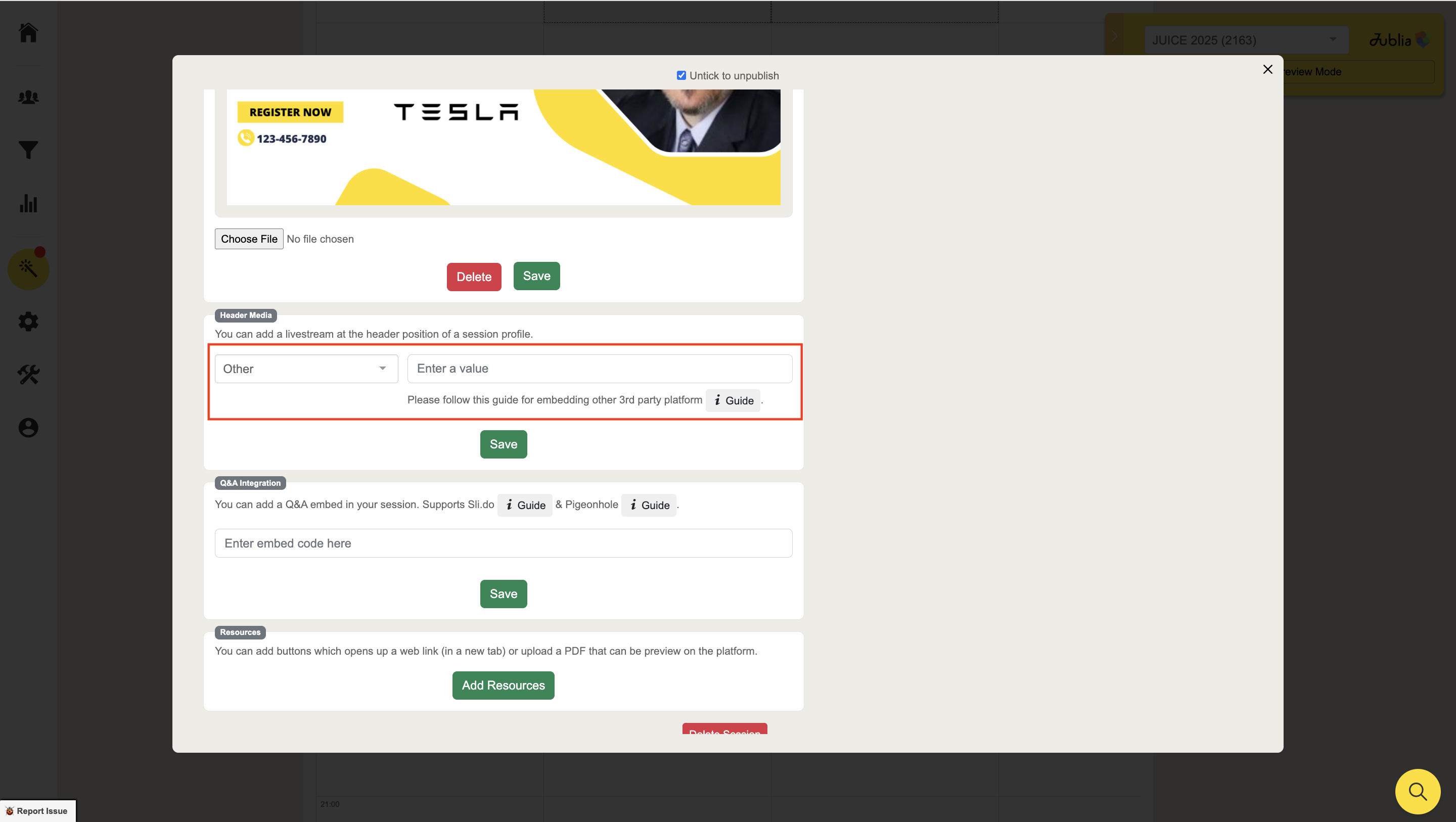
You can add a livestream to the header of a session profile by embedding iFrame or JavaScript code. This allows you to integrate external video content or other media seamlessly into your event’s platform.
Embedding iFrame and JavaScript Codes
Steps for iFrame or JavaScript Integration
Select "Others" from the Dropdown
In the Header Media section of the session profile, choose "Others" from the dropdown menu to allow custom embed code.
Obtain the Embed Code
Copy the embed code from your livestream provider. Typically, this can be found under settings such as "Share", "Embed Your Livestream", or similar sections on the provider's website.
Insert the Embed Code
For JavaScript, use the following format:
html
Copy code
<script> // Your JavaScript goes here </script>
For iFrame, use this structure:
html
Copy code
<iframe src="Your URL goes here" style="width:100%;height:100%;position:absolute;top:0;left:0;" title="Your title goes here"></iframe>
Add CSS Styling
For both iFrame and JavaScript, you need to apply the following CSS styling to ensure proper formatting and positioning:
html
Copy code
style='width:100%;height:100%;position:absolute;top:0;left:0;'
Save Your Changes
After pasting and formatting the embed code, click Save to confirm your settings.
Examples of Embed Code
JavaScript Embed Code Example
html
Copy code
<div style="width:100%;height:100%;position:absolute;top:0;left:0;"> <script type="application/json"> { "channelId" : 18299, "language": "en-US", "commId" : 430341, "displayMode" : "standalone", "height" : "auto" } </script> <script src="https://www.brighttalk.com/clients/js/player-embed/player-embed.js"></script> </div>
iFrame Embed Code Example
html
Copy code
<iframe style="width:100%;height:100%;position:absolute;top:0;left:0;" src="https://player.youku.com/embed/XNDQ4NDg5Njk1Mg==" frameborder="0" allowfullscreen></iframe>
Another example for YouTube:
html
Copy code
<iframe style='width:100%;height:100%;position:absolute;top:0;left:0;' src="https://www.youtube.com/embed/q_7Y24A6oFY" frameborder="0" allow="accelerometer; autoplay; encrypted-media; gyroscope; picture-in-picture" allowfullscreen></iframe>
Important Notes
Ensure the video URL or JavaScript code you are using is compatible with the platform you are embedding it on.
For Zoom, ensure the link does not require a password or use "1234" for instant access.
Check formatting: Use the provided CSS for optimal visual layout.
By following these steps, you can easily embed custom iFrame or JavaScript media into your event sessions, offering a seamless integration for livestreams and other video content.