Agenda Builder: Settings
Settings help you configure the dates and tracks before accessing the Builder to create agenda sessions and Speakers to manage who's speaking at your event. Quality content is invaluable to event attendees, particularly in virtual events.
Getting Started with Agenda Builder
To start building your event agenda, you can access the Agenda Builder in two ways:
From your SENSE home page:
Click Launchpad > Build Agenda Session > Agenda Builder
From the left section of the screen:
Click Manage (magic wand symbol) > Agenda Builder
Track Management
The first thing you need to configure in the Agenda Builder is the Track. Think of a Track as a "stream" of sessions that allows you to categorize content based on themes or types of sessions.
Steps to Manage Tracks:
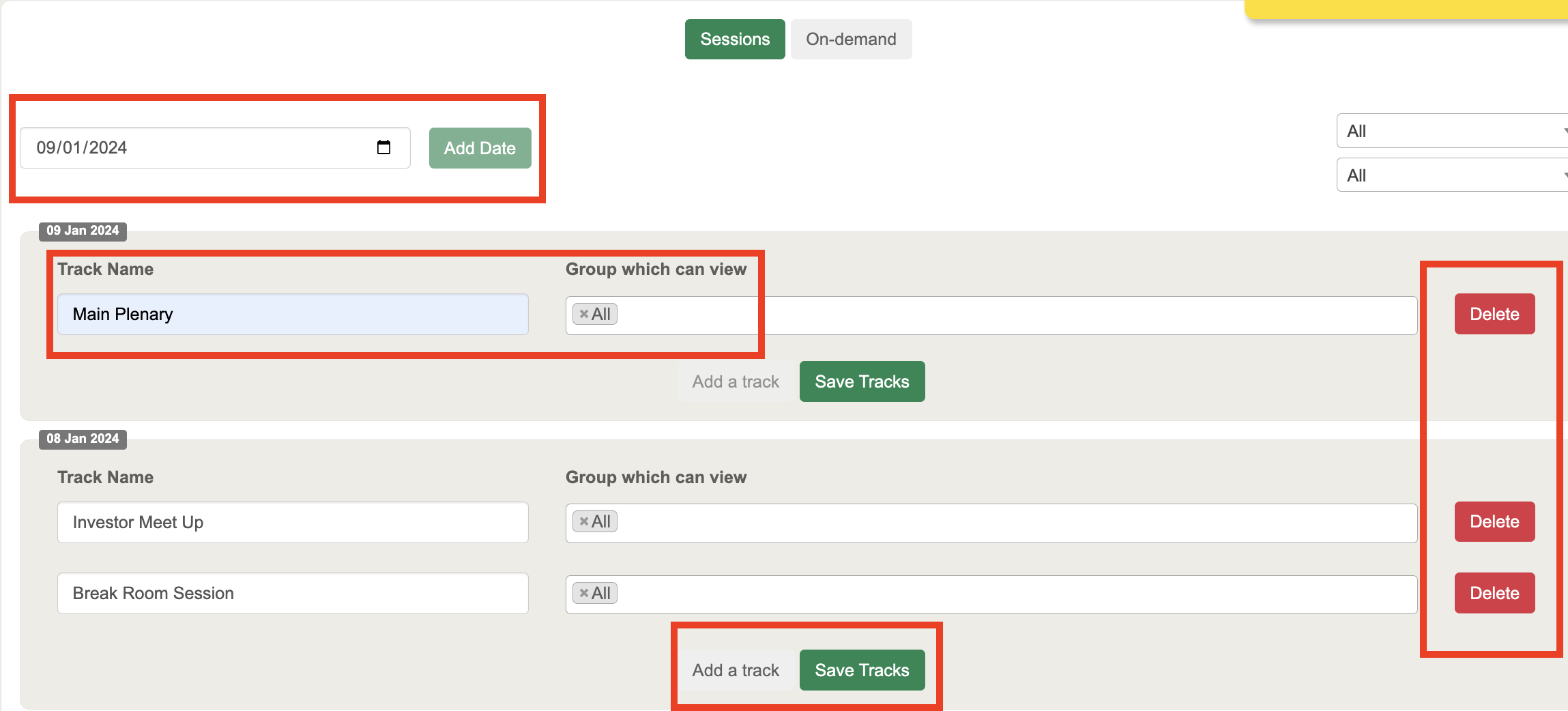
Add a Date:
Click 'Add Date' to create a new session track.
Set the Track Name:
Enter a name for the track (e.g., "Marketing Sessions" or "Technical Workshops").
Specify Track Visibility:
Select which group can view this track (e.g., attendees, speakers, or specific participant groups).
Save Track:
After entering the details, click Save Track to save the track.
Add More Tracks:
To add more tracks for the same date, click 'Add a track'.
To create tracks for different dates, click 'Add Date' again.
Delete Tracks:
If needed, you can remove a saved track by clicking the red delete button on the right.
Note: Deleting a track is irreversible.
On-Demand Tracks
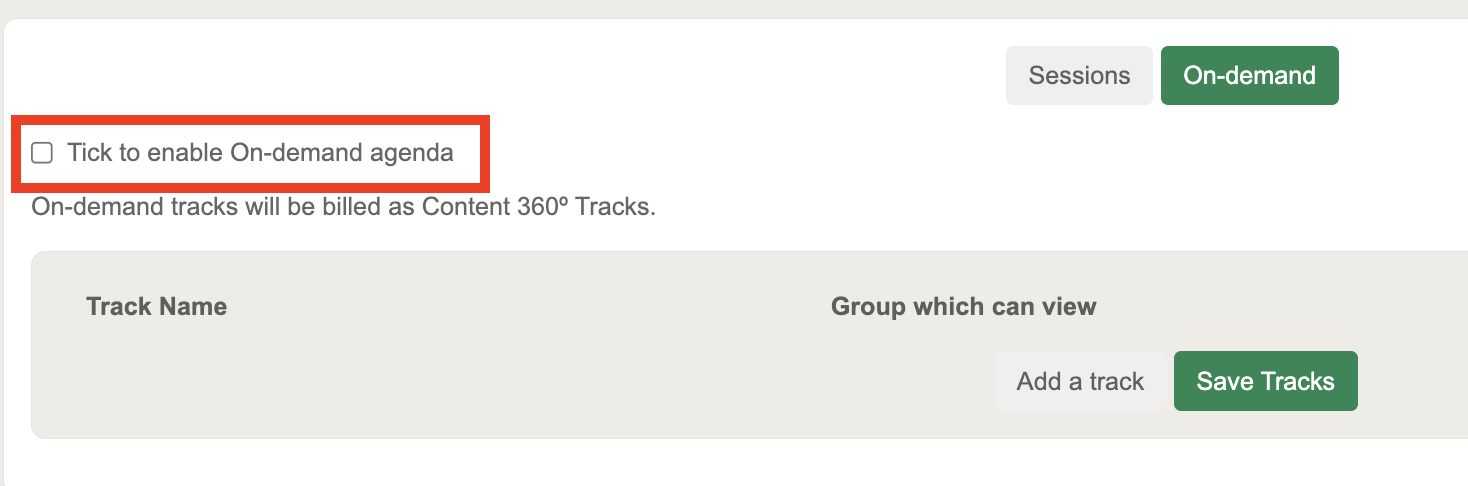
In the Track section, you’ll also see an On Demand button. This allows you to create on-demand tracks that participants can access at any time.
To enable On-Demand agenda, click the checkbox: Tick to enable On-demand agenda.
This works similarly to building a standard track in the Sessions page.