Email Courier: Import Email Template for HTML Emails
Managing email campaigns efficiently often requires reusing proven templates. With the new Import Email Template feature, organizers can now easily import and clone HTML email templates across events, helping maintain consistency and save time when preparing communications.
This guide explains how to use the import functionality step by step.
Step 1: Choosing How to Create Your Template
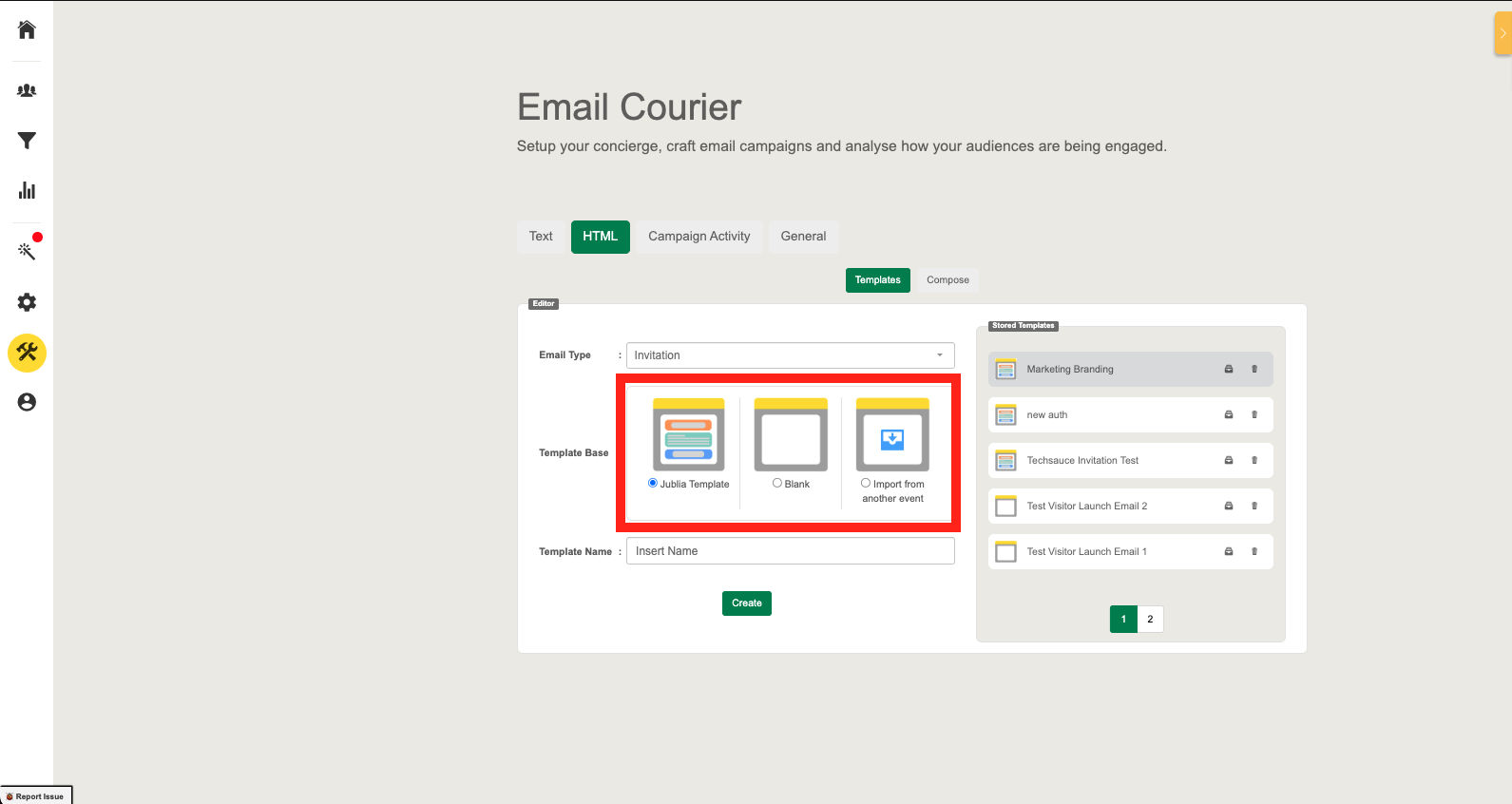
When creating a new HTML email template, you will first select the starting point:
Jublia Template – Pre-built base layout provided by Jublia.
Blank Template – Start from scratch with no predefined layout.
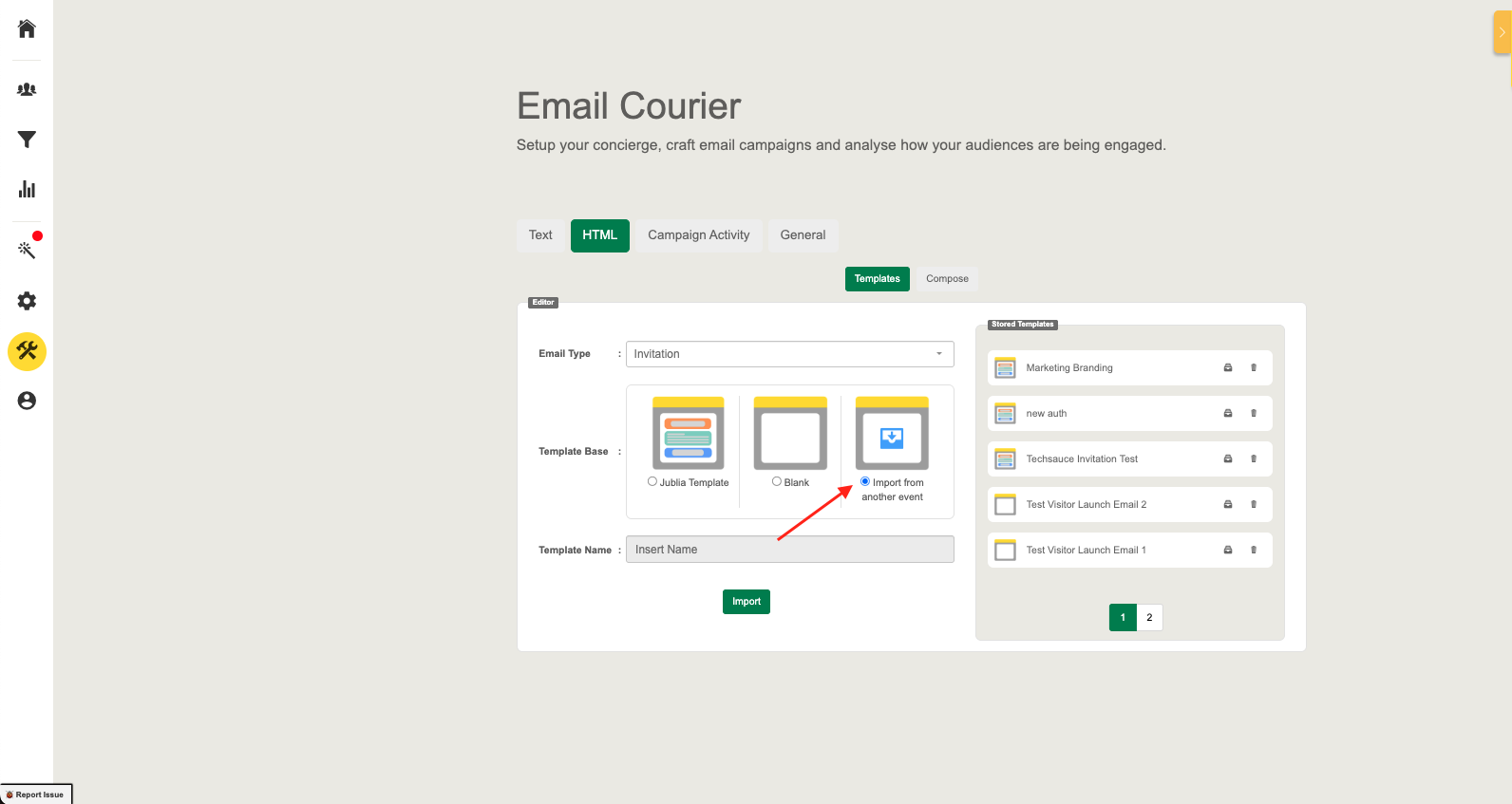
Import from another event Template– Reuse a template from a previous event you have access to.
Select the Email Type you would like to create
Select Template Base: Import from another event
The Template Name field becomes disabled (it will auto-fill later)
Click the Import button.
Step 2: Selecting a Source Event
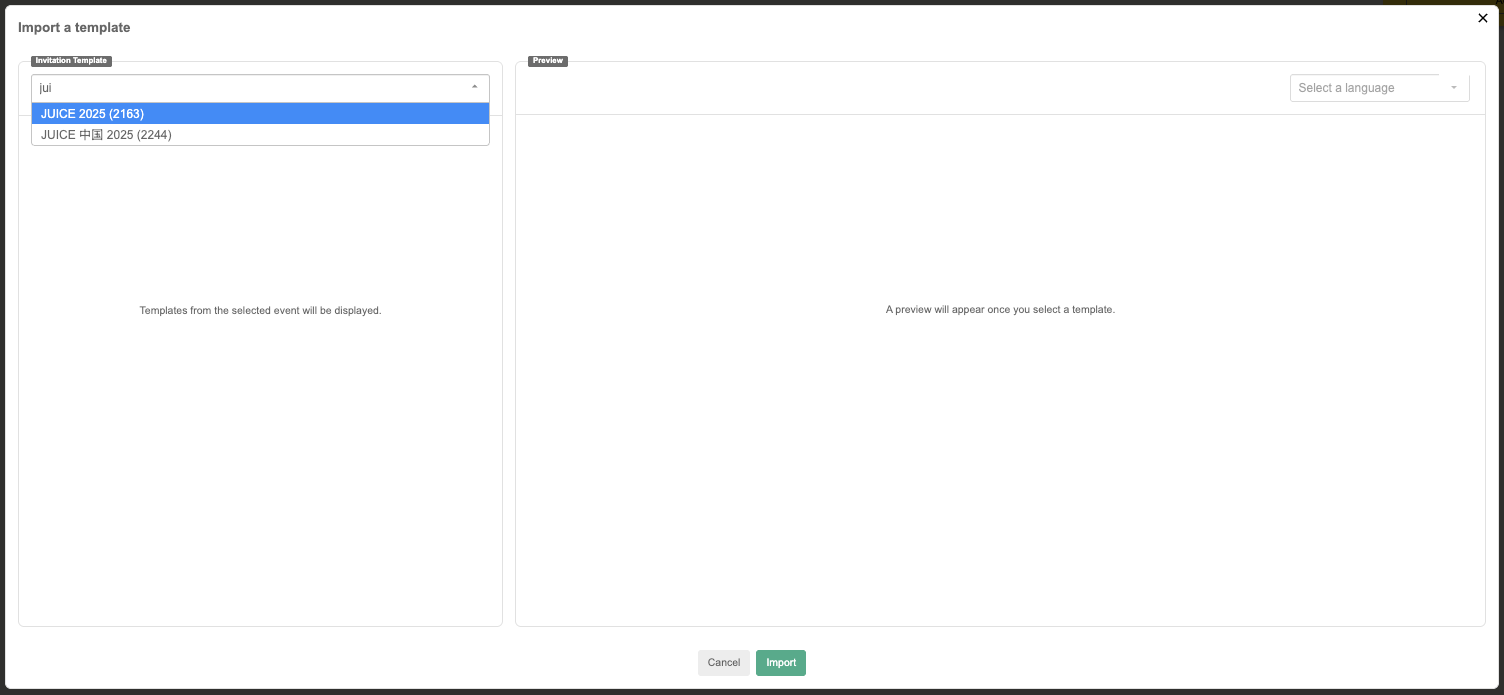
After choosing to import, you will be prompted to select the event from which you want to import the template.
You can only import templates from events you have access to (within the same organizer).
Only templates of the same email type and language can be imported (e.g., Invitation → Invitation only). You cannot import an Invitation email and convert it into a Structured Meeting email.
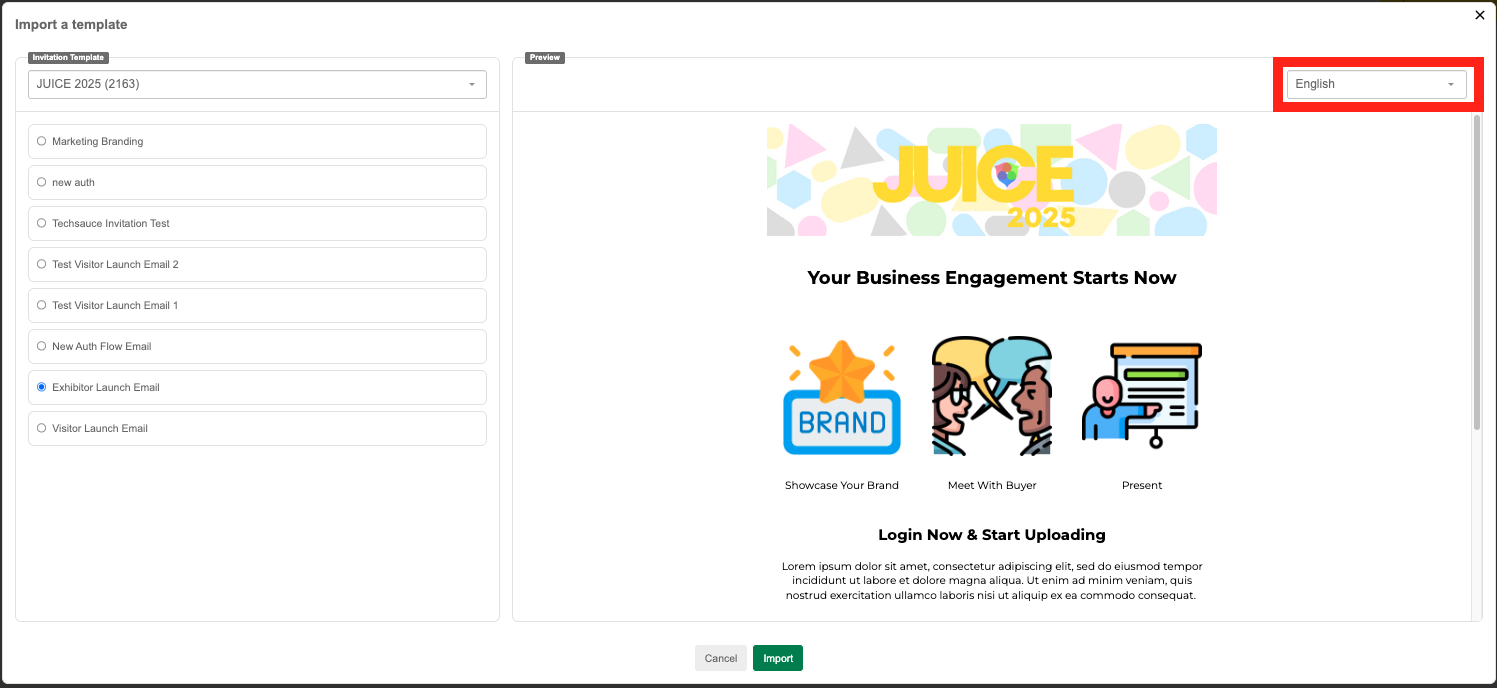
Step 3: Previewing and Selecting a Template
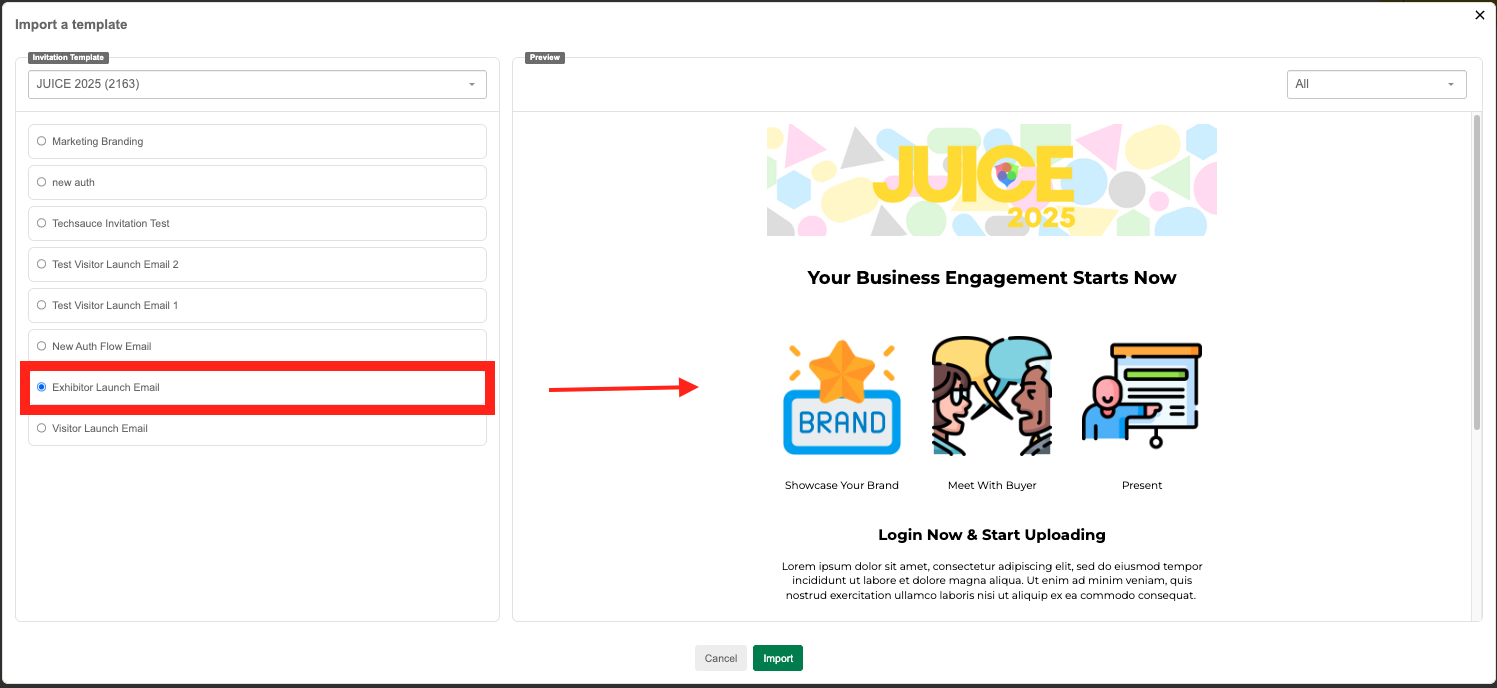
Once you select the event:
A list of available HTML templates for that event will appear.
Select one template from the list.
A preview of the selected template will display on the right side of the modal.
You can also filter to choose by language for the selected template, if applicable.
Step 4: Understanding Import Warnings and Messages
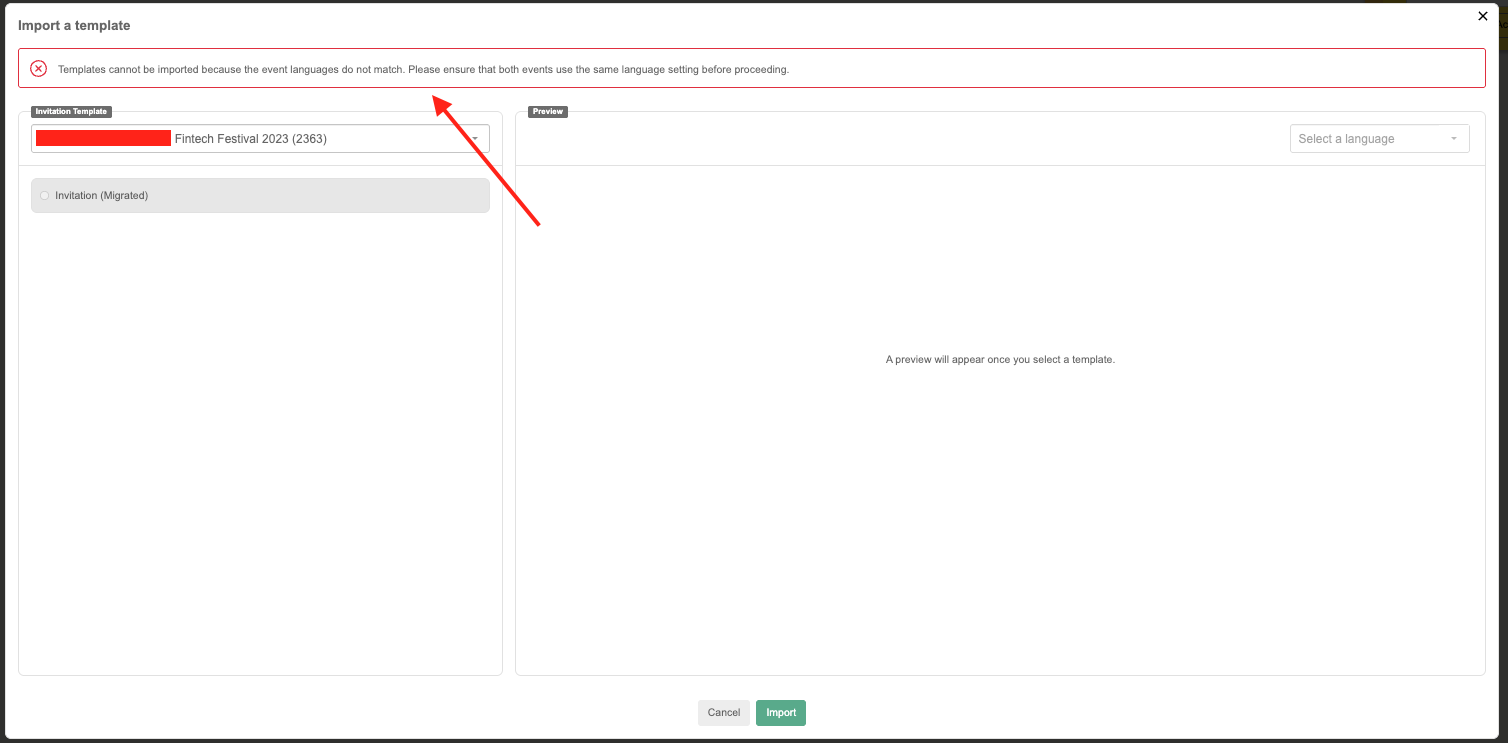
Before importing a template, email banners may appear based on compatibility between the source and destination events:
Language Error: If the selected template’s language doesn’t match the current event’s language, the system will block the import.
Step 5: Finalizing the Import
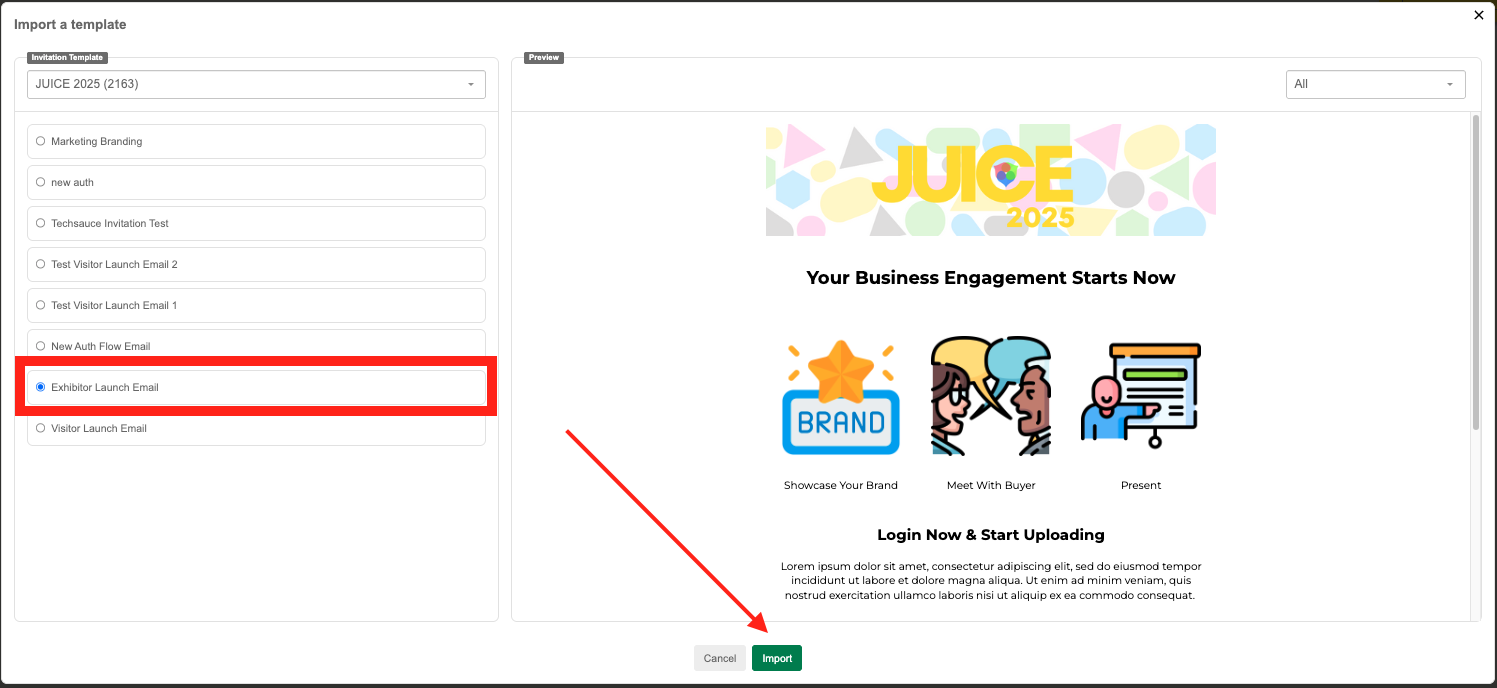
Once a valid template is selected:
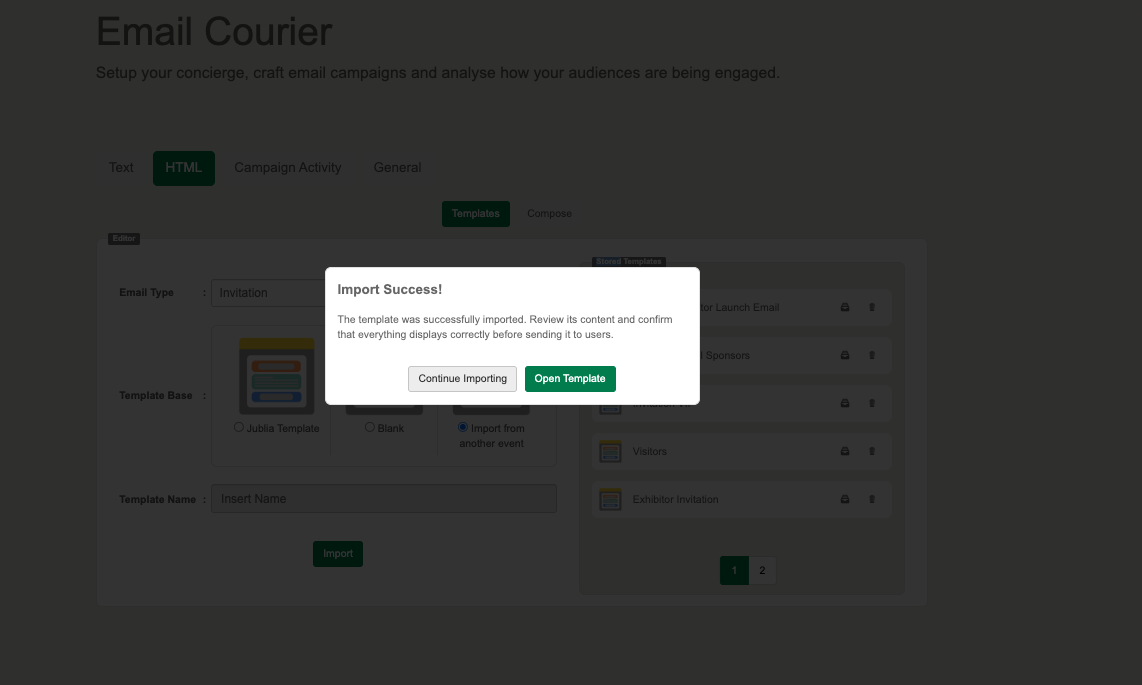
You can proceed to import the template by clicking the Import button.
The template name will auto-fill with the format “Copy of [existing template name]” to indicate it is a clone.
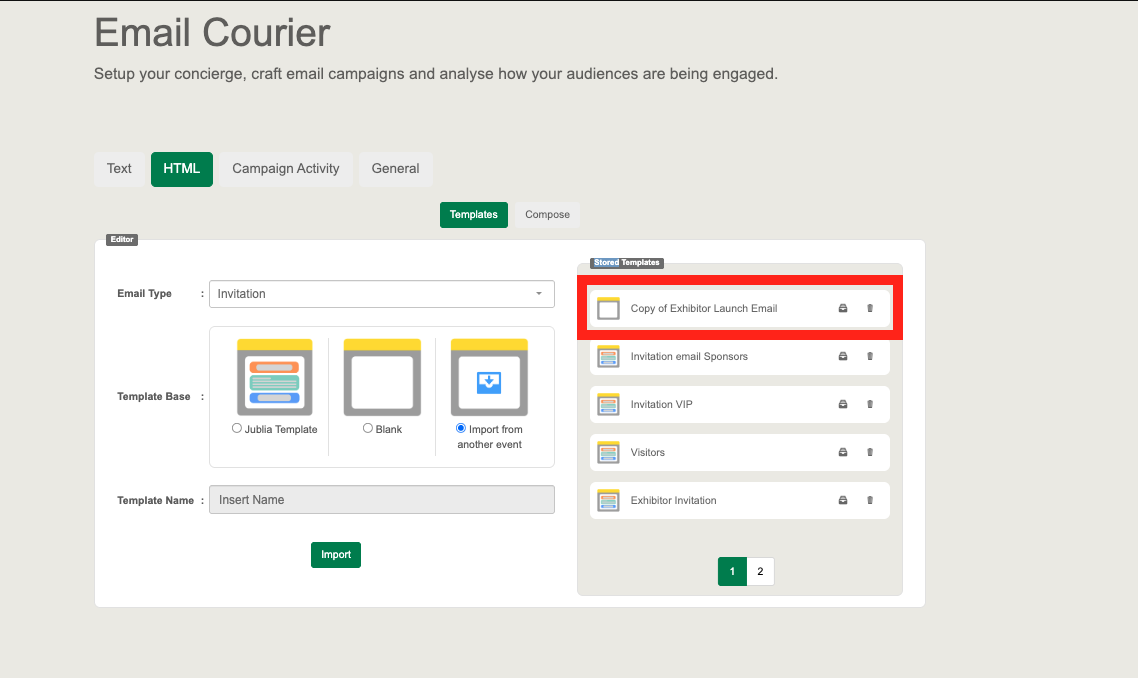
Additional Option: Cloning a Template Within the Same Event
You can also quickly duplicate / clone a template from the current event by clicking the copy button next to it. This will duplicate the template without needing to import from another event.
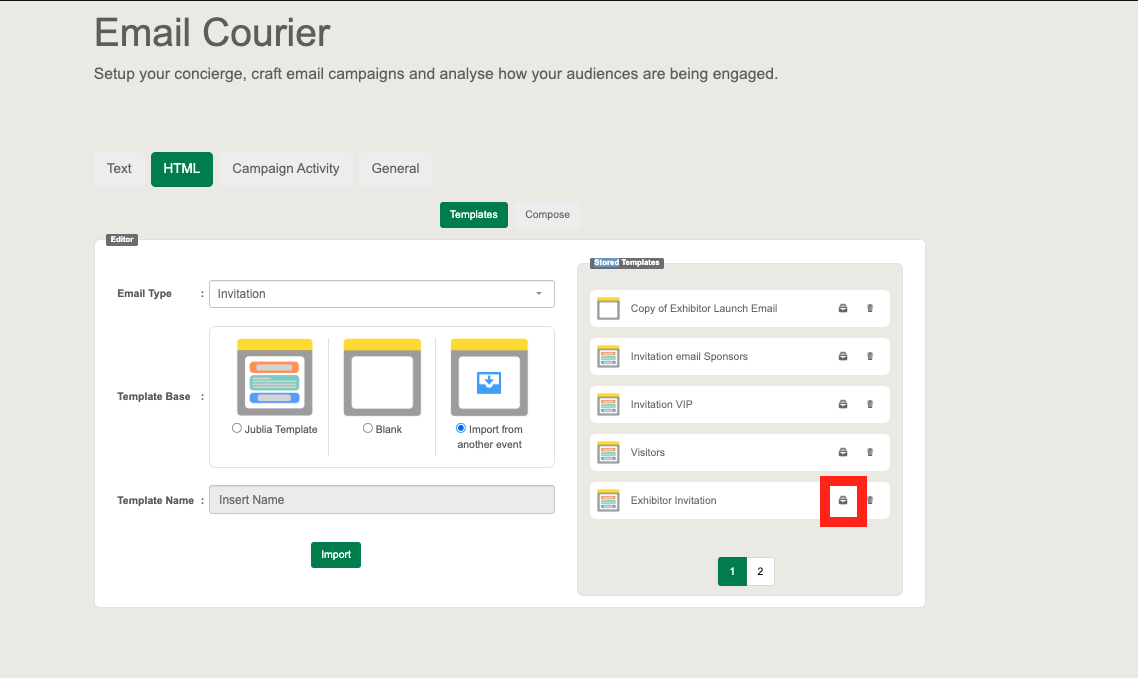
Best Practices
Name your templates consistently to identify original vs. imported versions.
Review the preview panel before importing to avoid layout or branding mismatches.
Use language filters to ensure you’re importing from a matching language version.