Native App Hub: Container Setup
The Native Container feature provides flexibility in managing your events through two primary setups: Single Event or Multi-Events (Container). Choose the setup that best fits your event's needs and optimize your attendee experience.
Single Event App: Ideal for events centered around a single, focused experience.
Multi-Events (Container) App: Designed for organizing companies hosting multiple events, allowing seamless management within one app.
Notes: Container setup can be found on Sense > Manage > Native App Hub > Container
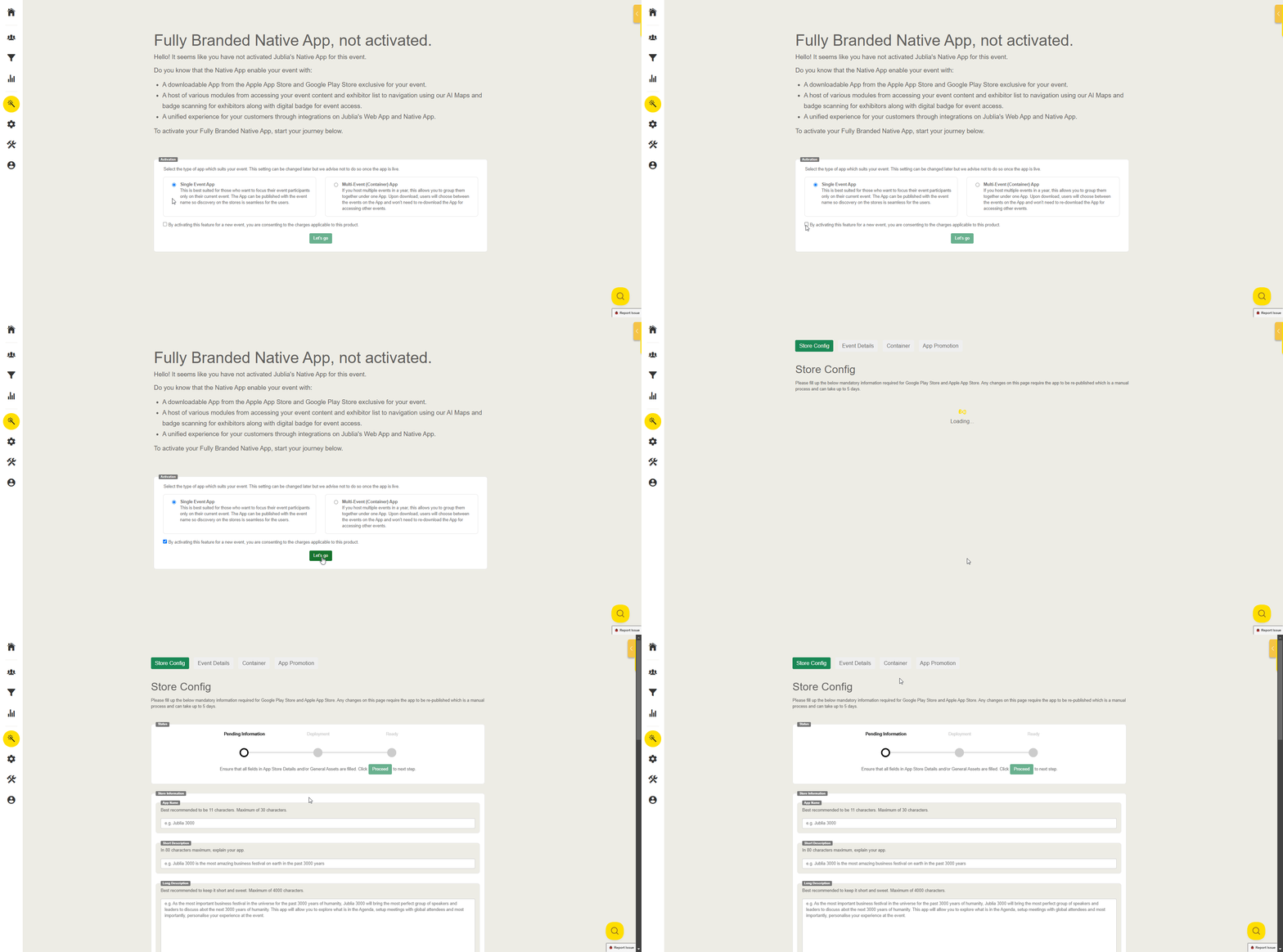
Build your Single Event App
Step 1: Select the Type of App
Select `Single Event App` in the Activation setup box.
Step 2: Create a Single Event App
Tick the consent section for applicable charges and Click `Let’s go` to create a single event app container.
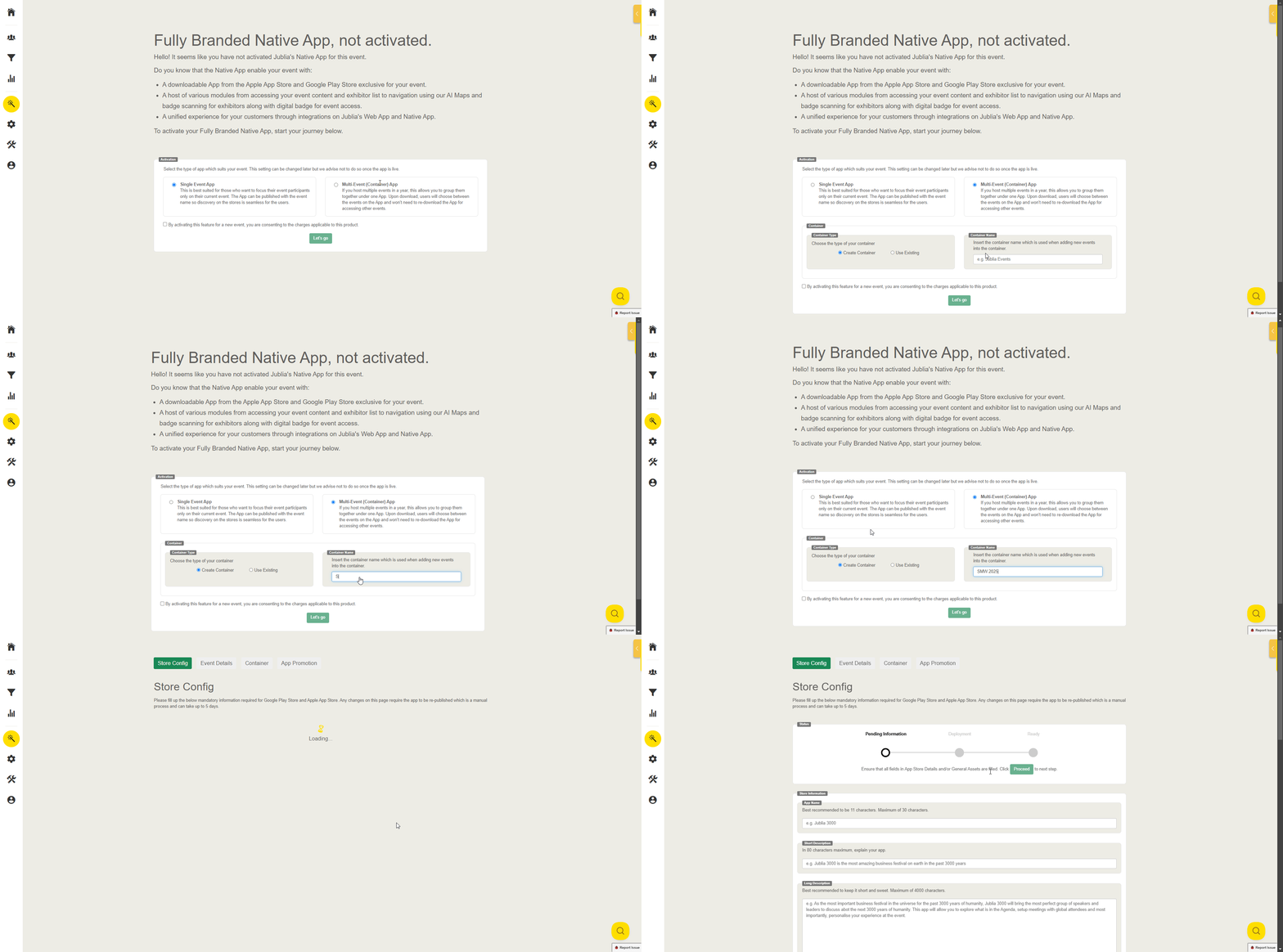
Build your Multi-Events App in a New Container
Step 1: Select the Type of App
Select `Multi-Event (Container) App` in the Activation setup box.
Step 2: Select Container Type
Choose `Create Container` and Enter a Container Name.
Step 3: Create New Multi-Events (Container)
Tick the consent section for applicable charges and Click `Let’s go` to create a multi-events app container.
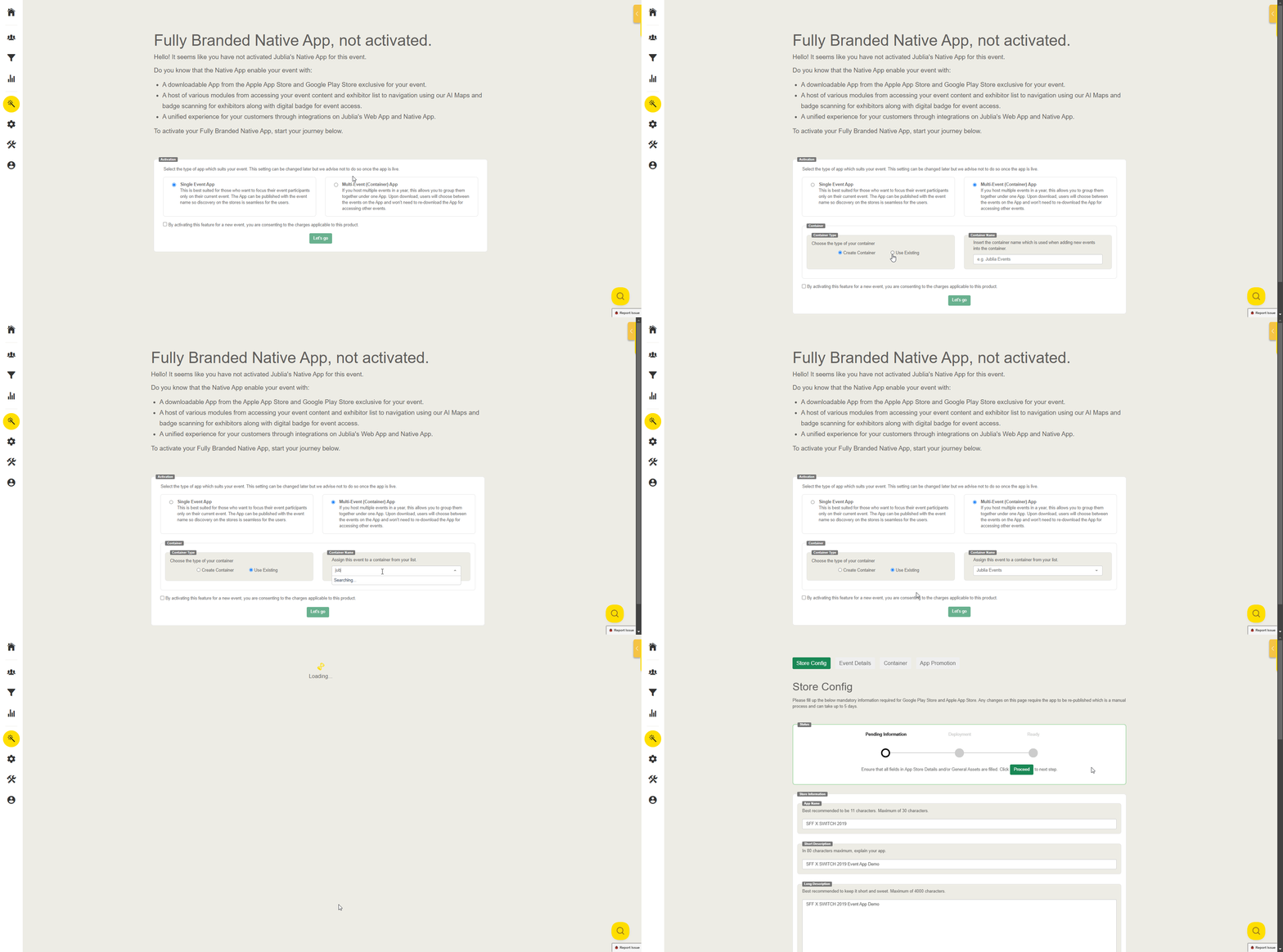
Build your Multi-Events App in an Existing Container
Step 1: Select the Type of App
Select `Multi-Event (Container) App` in the Activation setup box.
Step 2: Select Container Type
Choose `Use Existing` and Select an existing container from the list (for events created by the same organizing company).
Step 3: Add New Events in an Existing Container
Tick the consent section for applicable charges and Click `Let’s go` to add the event to the existing container.
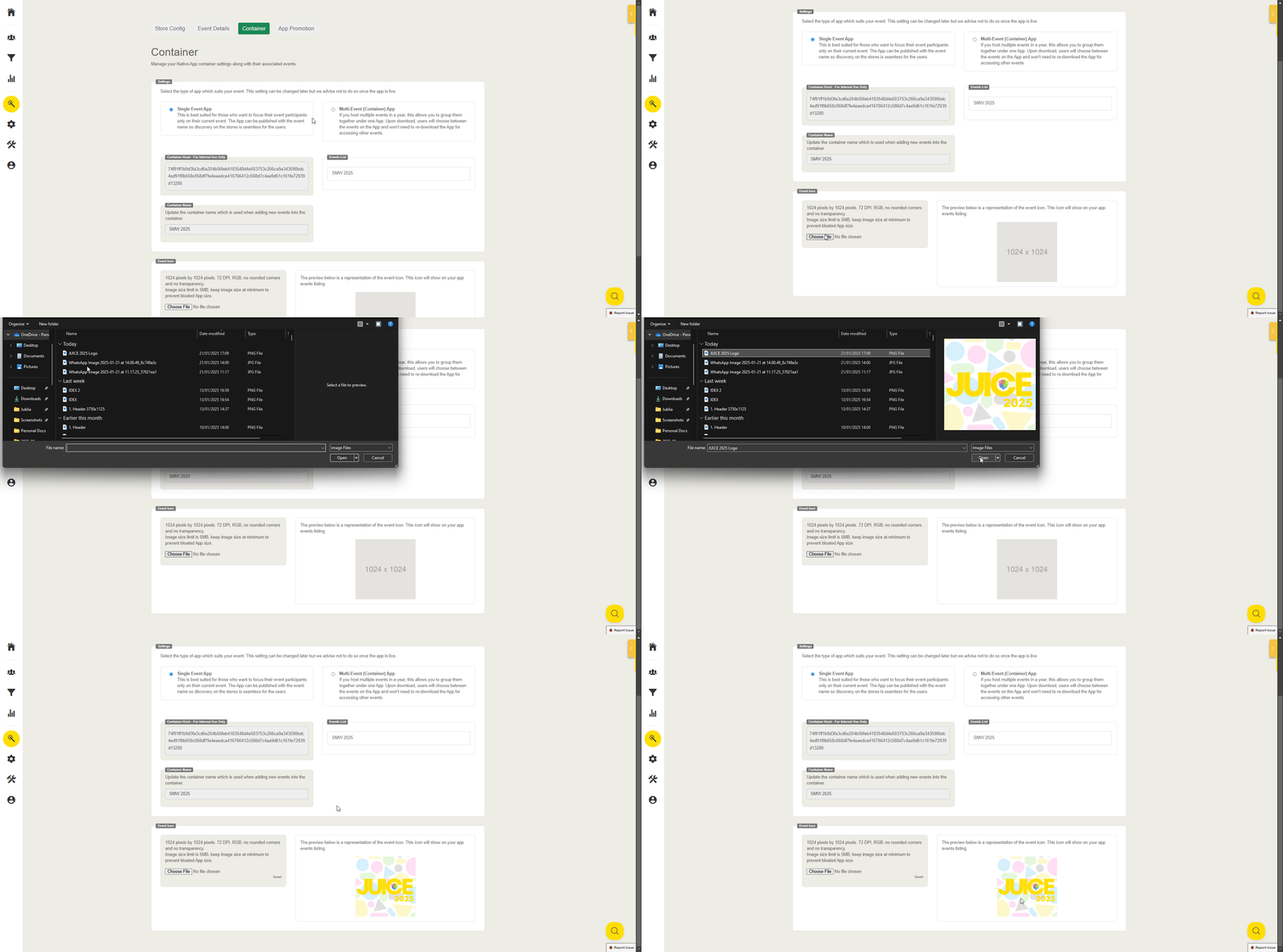
Upload your Event Icon App
Step 1: Upload Event Icon
Once the Event App is created (Single/Multi Event App), go to Event Icon setup and Select `Choose File` to be uploaded.
Step 2: Select Event Icon File
Select the Event Icon File from your local device and upload it.
Note: Please refer to the Image requirements in the Event Icon Setup section
How to Update Container Setup on Native App Hub
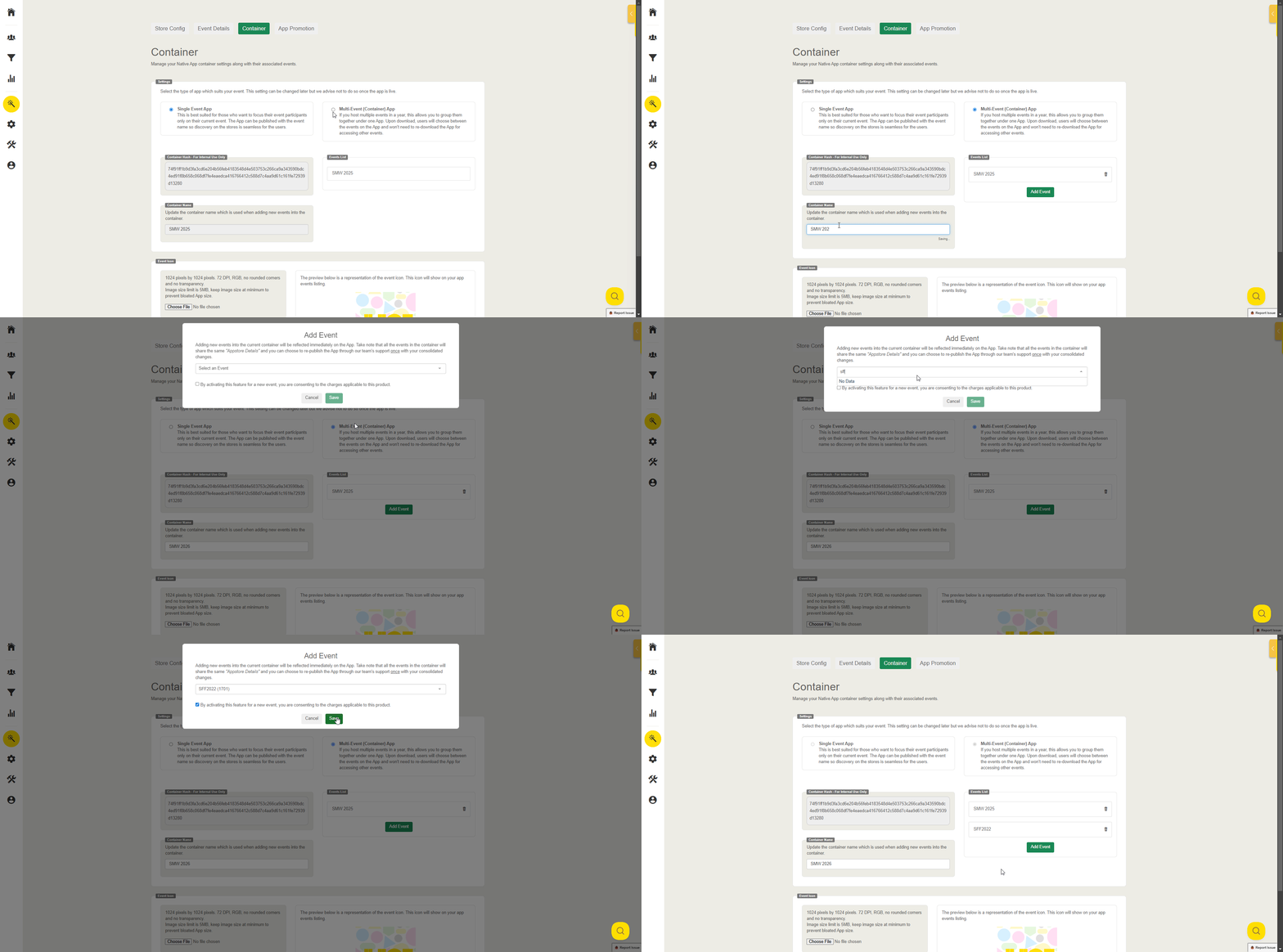
Update from Single Event App to Multi-Events (Container)
Step 1: Update Container Type
Select `Multi Event (Container) App` in the Settings setup box.
Step 2: Customize Container Name
You can customize the Container Name which is used when adding new events from the same organizing company into the container.
Step 3: Add New Events to the Existing Container
Select or search event names that want to be added to the existing container.
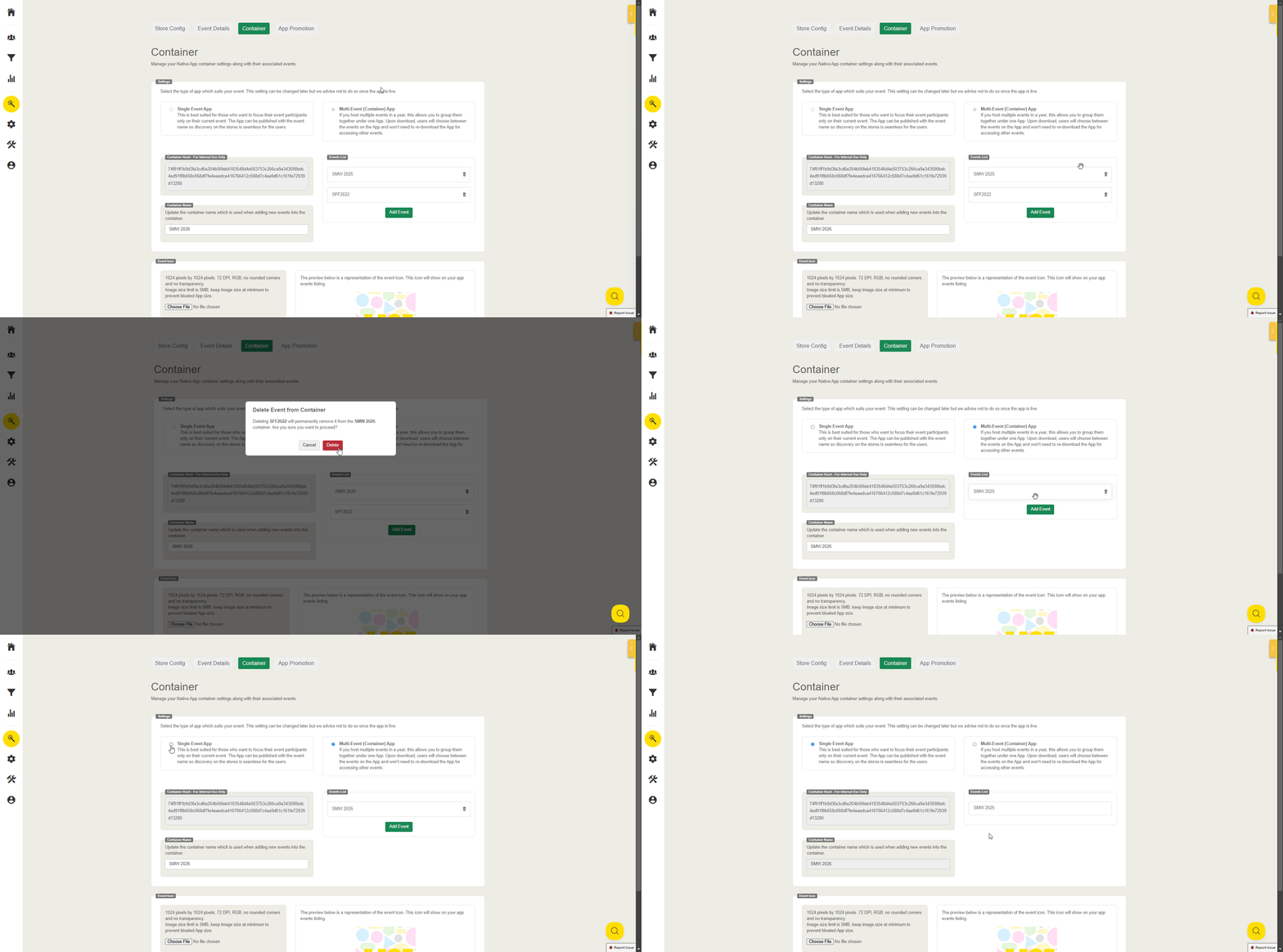
Update from Multi-Events (Container) to Single Event App
The container has multi-events.
Step 1: Exclude Events
In order to convert to a Single Event App, you need to exclude other events and keep the desired event.
Step 2: Update Type of App
Update the type of app from `Multi-Events (Container)` to Single Event App
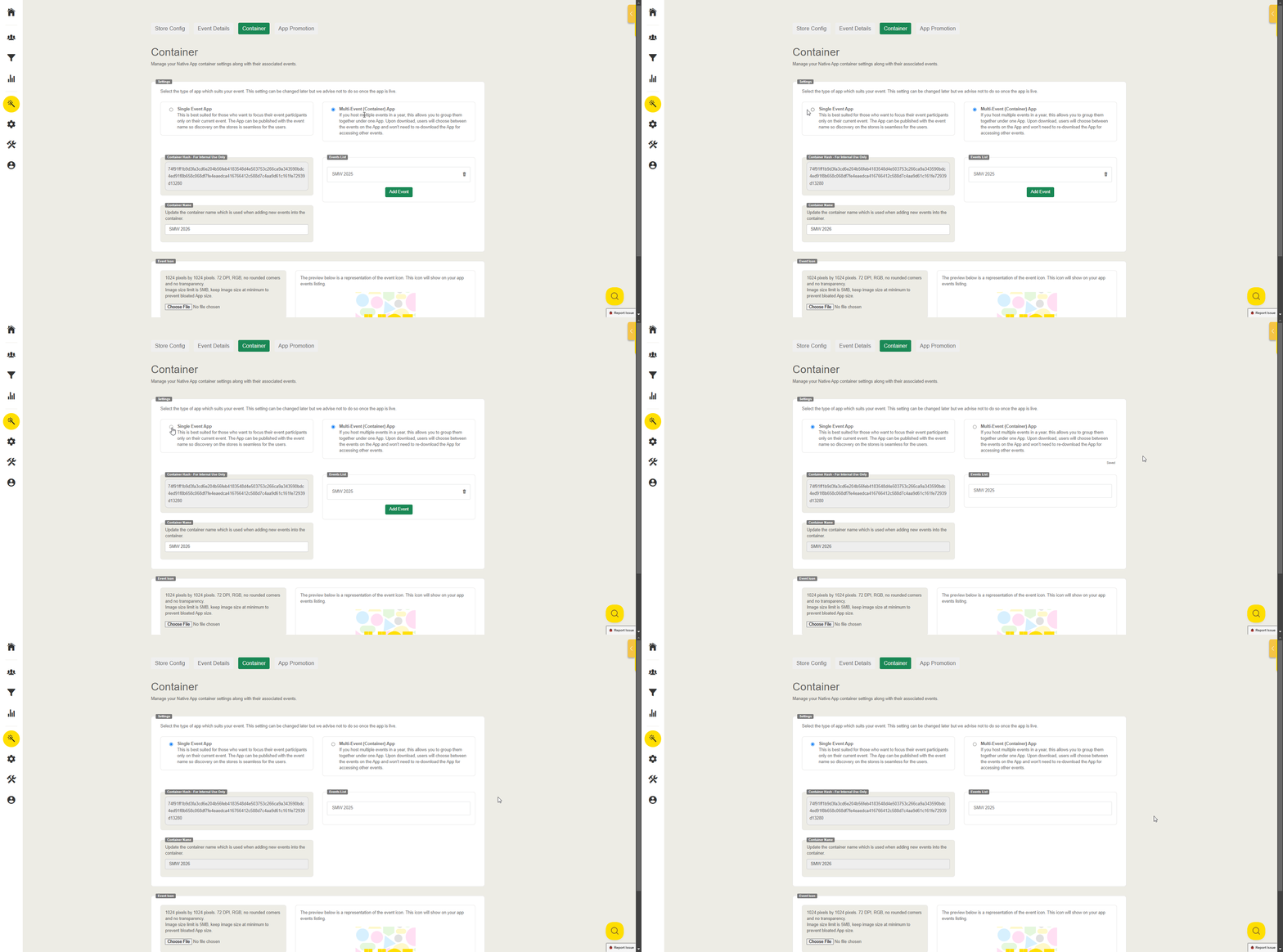
The container has only one event.
Step 1: Update Type of App
Update the type of app from `Multi-Events (Container)` to Single Event App
Key Considerations
Multi-Event Commitment: Reverting to a Multi-Events setup requires retaining at least one event in the container.
Deletion Triggers: Deleting all events in a container automatically deletes the container, requiring app store reconfiguration from scratch.
Optimize Your Native App Experience
Managing single or multiple events within the Native Appp Hub ensures flexibility and enhanced functionality. Use this guide to seamlessly set up your app, adapt to changing needs, and provide an exceptional experience for your attendees.